
You find the Snapchat video you want. You tap Download, but nothing happens. Or the video opens in another tab instead of saving.
You try again, and still cannot find it on your phone.
Before tapping the button again, check which part failed. Was the video found? Did a download start? Or did the file save somewhere you were not looking?
This guide covers saving available public Snapchat videos through a browser. Start with the table below, then follow the steps that match your problem.
Find your download problem
What happens | What to check | First step |
|---|---|---|
No video appears | Username, profile link, and public availability | Search again using the exact handle |
Download does nothing | Whether a download or new tab already opened | Check your browser’s downloads list |
The video opens in a tab | The browser may be displaying the media | Look for an available download control |
The download fails | Connection, storage, or the displayed error | Check the error before retrying |
The file seems missing | It may be in Downloads rather than Photos | Open Files or the browser’s downloads list |
The saved file will not play | The download may be incomplete | Download a fresh copy and check it |
A missing file and a failed download are different problems. Check your downloads list first. You may already have the video.
1. Check that the public video is still available
Open the item again. If it no longer loads, the download button may not be the problem. The content itself may no longer be available.
Story Snaps usually expire after 24 hours, although settings can change their lifespan. Creators can also delete them earlier. An old Story link is not a permanent copy of the video.
Search the public profile again and look for the current item. Saved collections or Spotlight may contain other available videos, but do not assume the same clip will be there.
If the video was shared only with friends or a selected audience, a public downloader cannot open it.
2. Use a supported username or profile link
A link can point to a profile, a specific post, or a page that needs a login. Different tools accept different inputs.
SnapStoryViewer’s video downloader accepts a username, @username, or a public profile link. Use the exact handle rather than the person’s Display Name. Its page also supports snapchat.com/add/username links.
For example, search wwe or paste https://www.snapchat.com/@wwe. Then choose an available video from the results.
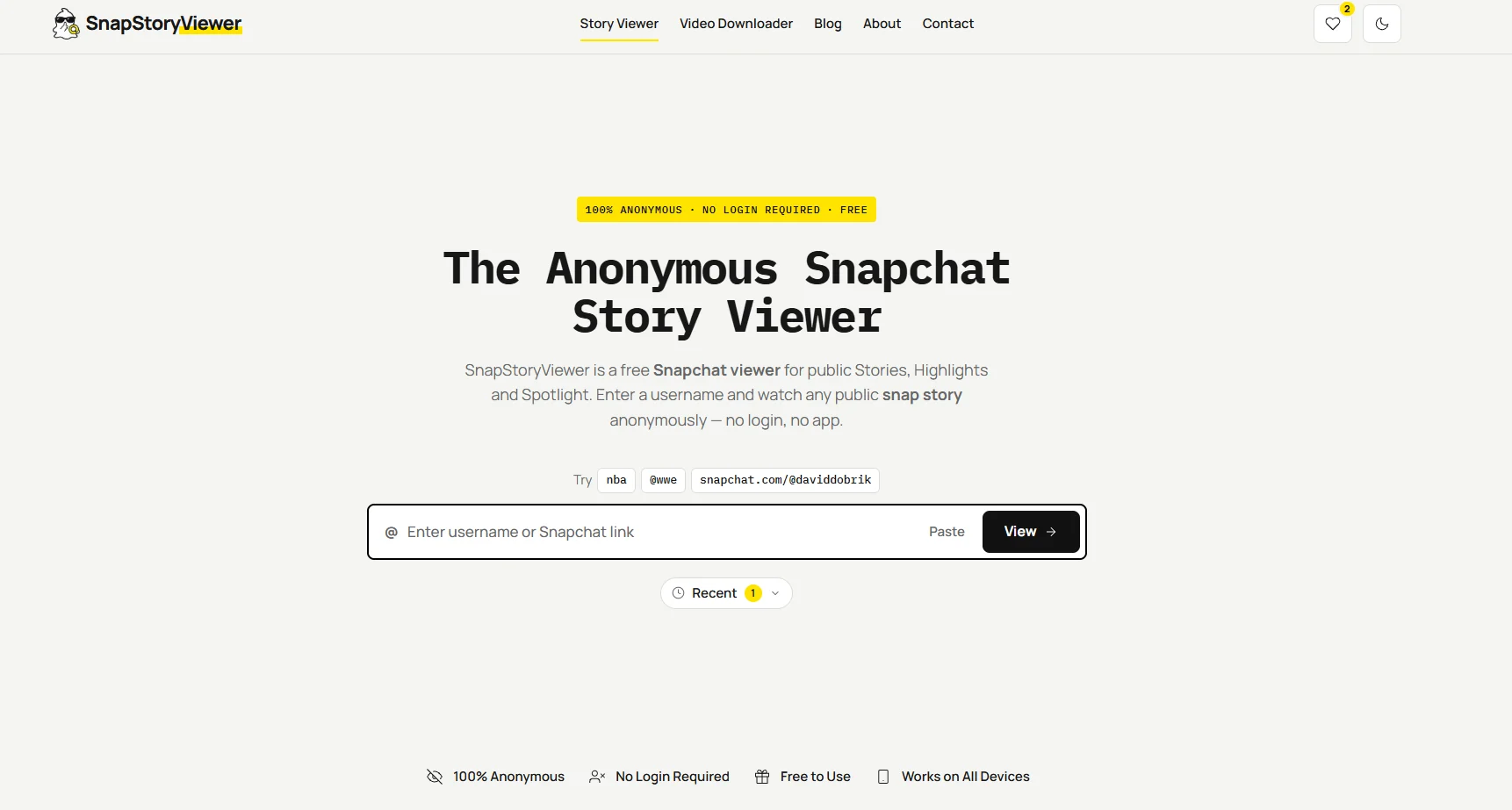
The SnapStoryViewer homepage accepts a username or profile link. The dedicated Video Downloader page uses a Find Videos button.
If the result is empty, recheck the spelling. An empty result alone does not tell you why the content is missing.
3. Choose a video and use its Download button
A preview opening is not the same as a file saving. First select the video you want, then use its download control.
To try an available public video, open SnapStoryViewer’s Video Downloader.
Enter the exact username or a supported public profile link.
Select Find Videos.
Choose Stories, Highlights, or Spotlight from the available results.
Open a video and use its Download button, or the download control on its card.
Check your browser’s downloads list to confirm the file completed.
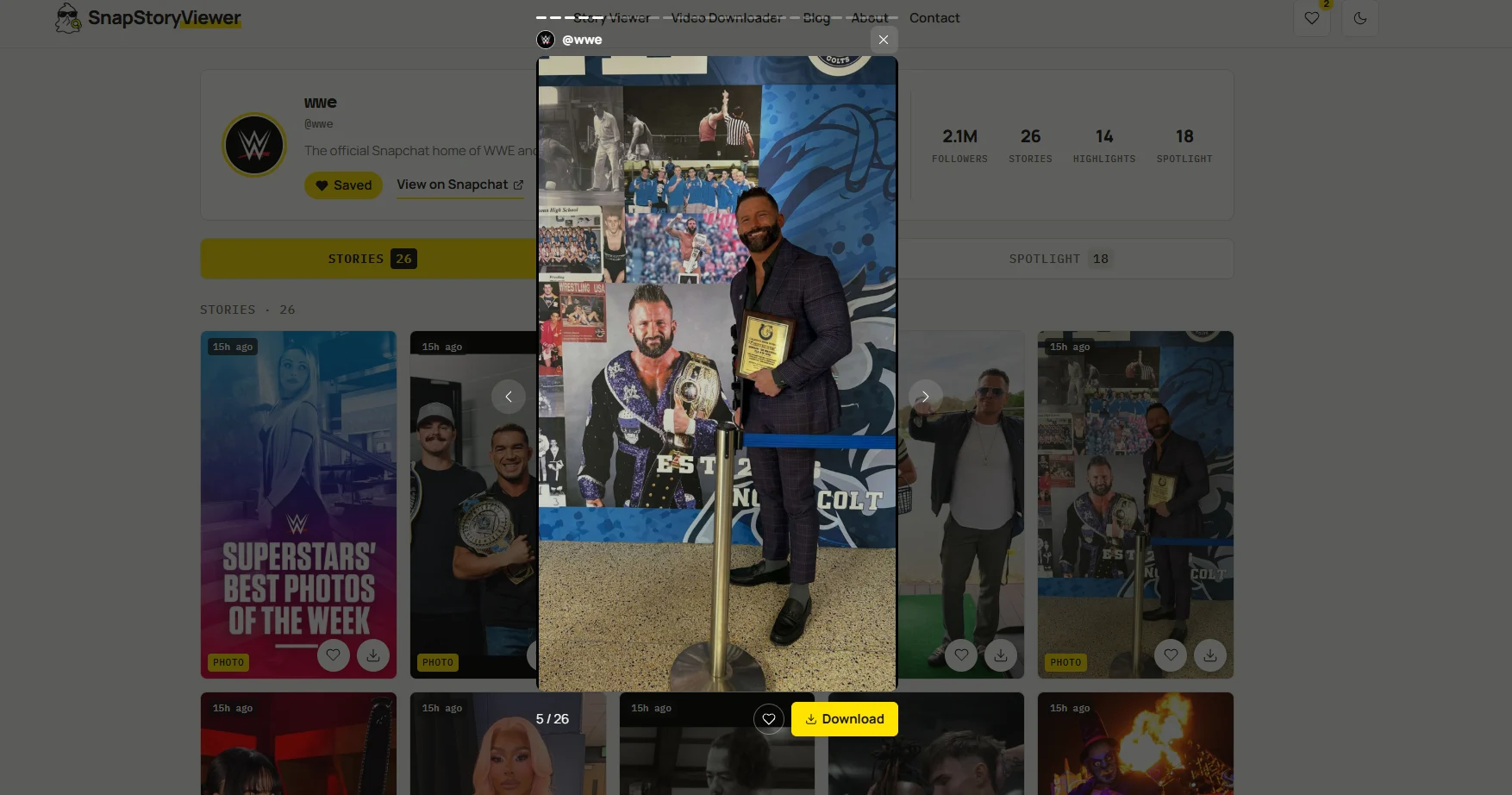
The yellow Download button sits beneath the opened item. This screenshot shows a photo in the viewer; select a video when saving a video file.
The dedicated downloader filters out photos. This helps when a profile contains both images and videos.
If one clip fails, try another available video. If the second saves, that suggests the first item needs a closer check. It does not prove the whole downloader is broken.
4. If the video opens instead of saving
A browser may display a video rather than immediately save it. Check whether the new tab has a download control. If it does, use that control and confirm any download prompt.
On Android
In Chrome, some video players offer a Download control. If there is a direct file link, touch and hold it and look for Download link. These options will not appear for every player.
On iPhone
If the video is only playing, return to the tool and use the item’s Download button. After a download starts in Safari, open the Downloads button to check its progress.
On a computer
For a direct download link, Save link as can help. Choose a folder you can access. Saving the whole webpage will not necessarily save the video.
5. If the download starts but fails
Check your connection and available storage. An unstable connection can interrupt a transfer. A Disk full message means there is not enough space to save the file. Retry once after resolving the problem.
Read the message rather than repeatedly pressing Download. File missing means the file is unavailable at that address. Forbidden or Needs authorization means the server is refusing access. Contact the site if the same error continues.
If every available video fails, try the tool in your normal Safari or Chrome browser and try again later. If only one fails, return to that item’s current results before retrying.
6. If the file downloaded but you cannot find it
On iPhone, open Files, then Browse → iCloud Drive → Downloads. If you use a different Safari download location, check that folder instead. Safari’s Downloads list is another place to start.
On Android, open Chrome’s menu and choose Downloads, or look in your phone’s Files app. A completed browser download may not be where you expected it in Gallery.
On a computer, open the browser’s downloads list and use its option to locate the completed file. Check the chosen folder before downloading another copy.
7. If the saved video will not play
First check whether the download completed. A file that stopped midway may not play properly. Download a fresh copy, wait for completion, and open it again.
If it still fails, note the filename, file size, and any playback error. Share those details with the tool’s support team. Do not assume changing the filename will repair the video.
Frequently asked questions
Why is there no Download button?
You may be viewing a player or page that does not offer saving for that item. Open the tool’s current video results and check the available controls.
Why is the video not in my iPhone Photos app?
Start in Files and Safari’s Downloads list. A browser download is not automatically proof that the video was added to your Photos library.
Can I download an expired Snapchat Story?
A downloader cannot guarantee recovery of expired content. A saved public-profile collection is separate from an active Story and may contain different items.
Can I download friends only or Private Stories here?
No. SnapStoryViewer’s downloader is for available public content. It does not unlock restricted posts.
What should I do if nothing works?
Note whether the video plays, whether other videos download, and the exact error. Those details make it easier for the website owner to investigate.
Ready to try again? Find available public Snapchat videos and check one item at a time.